

The next installment of Mac’s OS X operating system, dubbed Lion, is set to be released this summer. Here’s a list of some cool new features and new multi-touch finger gestures!
Contents
1 Launchpad
A whole lot of the new features in OS X Lion are based on the Apple’s vision of “Back To The Mac”. This idea basically takes everything that rocks on the iPhone and iPad and translate it back to the computer or laptop interface. And what better way to start than a proper list of your favorite Apps?
Launchpad mimics the way you browse your iPhone’s Apps by simply listing them in a grid. The Launchpad can also be enhanced by adding directories so you can find anything you need in just a few clicks. Look for the video below to get a better idea of how it will look.

2 Full Screen Apps
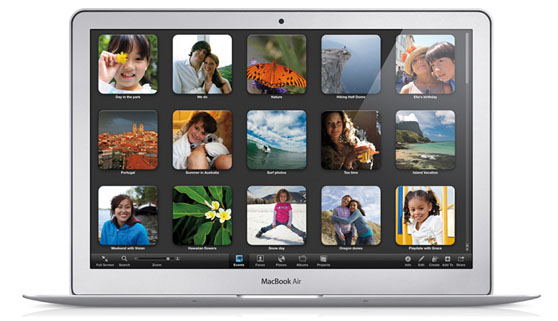
This has actually already been introduced with the new release of iLife 11, but will be implemented even further in the next OS X operating system. Again, just like you view your Apps on the iPad or iPhone (or any other tablet or smartphone for that matter), Full Screen view of an App really makes it stand out more for great functionality. Everyone should try out something like iPhoto 11 to get an idea of how simple, yet awesome this actually is.
3 Mission Control
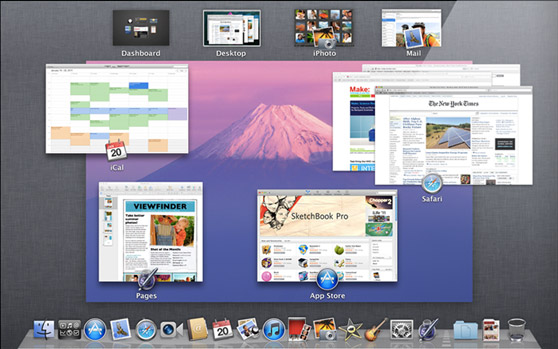
CMD-Tab, eat your heart out! Mission Control makes sure you can always find and retrieve the stuff you were working on by categorizing your Apps and all the instances it’s running. Have a look in the video below to see how advanced it really is.
4 Tap to Zoom
OS X Snow Leopard has loads of trackpad/multitouch gestures already, especially with the newer MacBook generations, but Lion goes just a step further. You probably already know all these gestures, because you most likely own a smartphone or maybe even a tablet already, but adding these gestures to a full-blown operating system might really make it a better experience.
Tap to Zoom simply makes it easy to point your mouse at something, say, a paragraph of small-sized text on a newspaper site, tap on it with two fingers and read it up close. Just like you can’t actually read anything on your smartphone.
5 Pinch to Zoom
Well, you already read about Tap to Zoom: Pinch to Zoom is mostly the same, but with a pinching action of your thumb and index finger for example. Not much explanation needed, I guess.

This is actually pretty awesome, especially in combination with the Full Screen Apps feature. By sliding left or right (maybe even up and down?) you can easily navigate your current running apps and screens within them.
7 Auto Save
Priceless: auto-saving anything you’re working on the fly makes sure you won’t lose anything important. After all, even though it only happens like once every two years, even a Mac might crash unexpectedly.
8 Versions
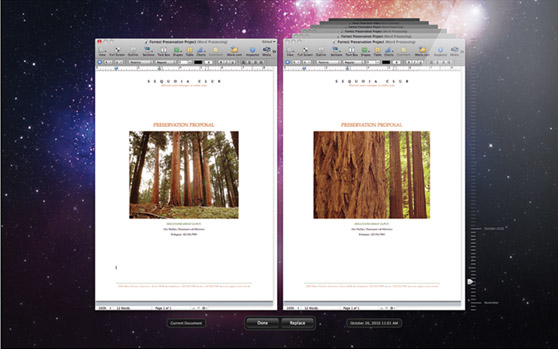
Adding to this auto-save experience, Versions records your documents on a regular basis as you write them and stores the changes made. This way, when you realize you’ve made a mistake along the way, you can most easily slide through the different versions of your work and revert anything you want by copying and pasting it in place. Sweet.
9 Resume
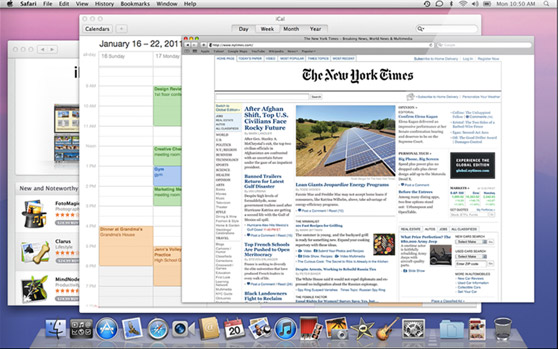
Nothing fancy, but very useful. Just like you’re used to when you hibernate and wake up your MacBook by closing and then opening it again, this now works after shutting it down as well.
10. Lion Server (built-in OS X Server)
OS X Server isn’t new at all, but instead of having to buy it separately, Lion has it built-in to make it more mainstream and available for the masses.
