
So you own a blog or website running WordPress, you’ve written quality content, but you feel like you’re not getting the attention you deserve? It might seem like the big SE’s (search engines) like Google, Yahoo and Bing are completely ignoring you, even though your content is unique and engaging enough to be found.
Some of the problems you might be facing are Missing Title Tags, Missing Meta Descriptions and Duplicate Content!
I ran into this myself a while back, when I started getting more serious about this site’s SEO and overall findability. I found out that, although all articles were unique, search engines found a million duplicate content issues (duplicate titles and tags) some broken links and a whole load of missing meta titles and tags. No one seems to be really sure if these duplicate content occurrences are really scaring Google away from your site, but I feel fixing it has helped a lot.
Here’s how to get started to improve your site’s SEO (search engine optimization) and get better indexation in Google:
Contents
- 1 Identify your website’s issues using Attracta
- Meta descriptions:
- Title Tags:
- 2 Install Yoast SEO Plugin for WordPress
- 3 Optimize the Yoast SEO Plugin settings
- Page 1: Dashboard
- Page 2: Titles
- 4 Fix WordPress’ REPLYTOCOM duplicate content issue
- 5 Update the Attracta results and finetune step 3 if you’re not satisfied
- If you tried these steps, please let me know if it worked for you. Also, if there’s anything I overlooked or you think I’m simply wrong, don’t hesitate to comment below!
1 Identify your website’s issues using Attracta
 This service isn’t free on itself, but it comes free with the cheap and awesome webhost Hostgator, which is how I found out about it.
Anyway, Attracta is a service that not only submits your sitemap to the biggest search engines on a regular basis, it also helps you identify problems search engines like Google might encounter with your pages. Of course, you can identify these issues for free through Google’s Webmaster Tools as well, but this is always out-dated at least two or three days, which makes fixing the issues pretty time-consuming.
Some problems you might find that could discourage SE’s from indexing your pages:
Meta descriptions:
- Missing meta description tags
- Duplicate meta description tags
- Long meta description tags (more than 156 characters)
- Short meta description tags (fewer than 50 characters)
Title Tags:
- Missing title tags
- Duplicate title tags
- Long title tags (more than 70 characters)
- Short title tags (fewer than 10 characters)
And of course you can add broken links (404) to the list of troublesome issues.
What Attracta does is crawl your website for messy tags and titles and then give you a detailed report of what’s what within a couple of minutes. This way you can identify any SEO-related issue and fix it as soon as possible. Again, you could do the same through the Webmaster Tools, but you will see the changes you made like three days later.
Here’s how the stats look upon crawl-completion:
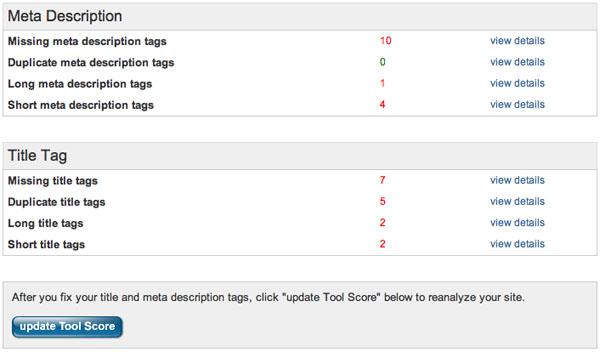 Before I started fixing this site’s issues, the numbers were actually in the hundreds, because every page created its own duplicate content (through comment pages for example) and I hadn’t done anything to create optimal titles and page tags.
Alright, now you’ve identified your site’s problems: on to step 2!

2 Install Yoast SEO Plugin for WordPress
 After having tried several other WordPress search engine optimization tools, I have found Joost de Valk’s WordPress SEO Plugin the single best, most effective and most user-friendly out there (hooray for Holland :)). On a side note, his site and all the other tools, tips and services Joost offers are pretty damn awesome so have a look around if you want to know more about SEO.
So by now you’ve installed the plugin on your WordPress site, lets continue setting it up in step 3.
3 Optimize the Yoast SEO Plugin settings
I’ll use screenshots to show how I set up the plugin.
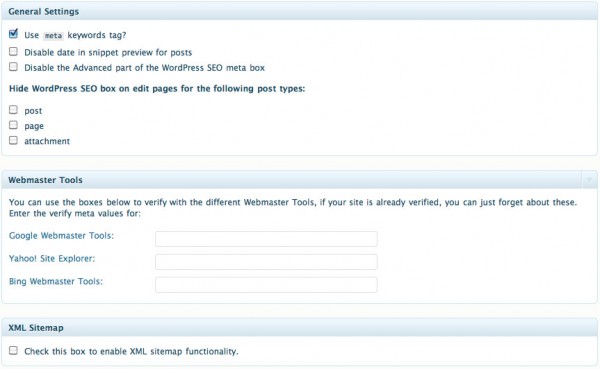
Page 1: Dashboard
There’s not a whole lot going on here. If you haven’t had Google, Yahoo and Bing verify your site’s ownership, you can do so here. There’s also a sitemap tool which I’m not using, because I already have another XML sitemap plugin installed.
Page 2: Titles
This page is actually most important for fixing your site’s missing or duplicate tags. Right now, you need the results you got from Step 1 to see which options need attention most. For me, actually all title tags and meta descriptions were dodgy so I changed most of it.
Homepage
Not much to say about the Homepage, except that you do need a proper title and description tag. You filled set those up when you set up your WordPress installation, right?  (Just find the General Settings in your WP Dashboard). Also make sure you come up with a good list of tags that suit your site best.

Posts
Here’s where it gets interesting. Assuming you’re using a unique title for each article you publish, you just need the %%title%% tag for the first field, but for each post’s meta description it’s good to fill it out properly. If you look at the screenshot, this is how the meta description of this very post looks:
All You Need Is Internet Lists: 5 Steps To Improve Your Site’s SEO and Prevent Duplicate Content in WordPress
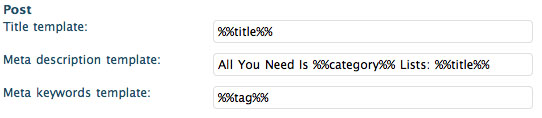
This means that, instead of writing a meta description for each and every post in the Edit Post screen yourself, the plugin gives each post a unique description automatically. Perfect for me, because I’m lazy at writing descriptions, especially for articles that were published months ago.
Tip #1: Make sure the Title Tag is between 10 and 70 characters long.
Tip#2: Make sure the Meta Description is between 50 and 156 characters long.
this counts for any Title Tag and Meta Description below as well.
Pages
Well, I don’t have a whole lot of static pages, but if you do, just fill it out like this and you’ll be fine. If you have like 2 or 3 pages like me, just write a proper description in the Edit Page screen.

Categories
If you set up the plugin to have Google index your category pages as well this is where you can tidy it up. This is how I set it up:
 Post Tags
Post Tag pages can be indexed as well:
 Author Archives
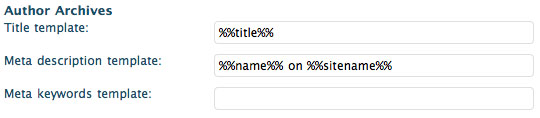
If you have a website with a number of authors, this is where you can make sure the indexed Author Archives look good enough for search engines:
 That’s about it concerning the Missing Tags and Duplicate Content issues. There are more options to look at in this awesome plugin, but that has less to do with what we’re addressing here.
Now feel free to go to your Attracta account and hit the UPDATE TOOL SCORE button to have it crawl your pages again. You should see the results within 5 or 10 minutes.
4 Fix WordPress’ REPLYTOCOM duplicate content issue
Now that you’ve fixed the Missing Tags and Meta Descriptions for all your existing posts, pages, categories and the likes, you will probably still see a huge amount of duplicate content. This is most likely because of something of WordPress creating an actual indexable page out of every Comment. In the Attracta or Google Webmaster Tools you can recognize these faults by the ?REPLYTOCOM parameter.
Although no one actually says this is a very bad thing for your sites search engine ranking, it doesn’t hurt to fix it anyway. I searched my ass off to find a solution, but eventually it just came down to a simple plugin that requires not setup: Replytocom Redirector
5 Update the Attracta results and finetune step 3 if you’re not satisfied
That’s pretty much it. You’ve now updated your posts well enough to be indexed properly without Google having to mark it as Duplicate Content. If you’re using Attracta, update the results and see how it looks. If you’re using the free Google Webmasters Tools you should have some patience as changes will be visible within a couple of days.
If you’re satisfied with the results, you’re done. If not, go back to Step 3 and fine-tune the Yoast SEO plugin’s options until you are.
As an added bonus to this small tutorial, you now also have the Yoast SEO Google Preview box in your Edit Post screen. When you’re about to publish your next article make sure to fiddle around with it for results in search engines!
If you tried these steps, please let me know if it worked for you. Also, if there’s anything I overlooked or you think I’m simply wrong, don’t hesitate to comment below!